
Messages
The Messages view lets you browse every message that passed through a channel, inspect its content at each processing stage, and reprocess messages that need to be resent.
Opening the message browser
Section titled “Opening the message browser”From the Dashboard, double-click any channel row to open its message browser. You can also use the right-click context menu and select View Messages.
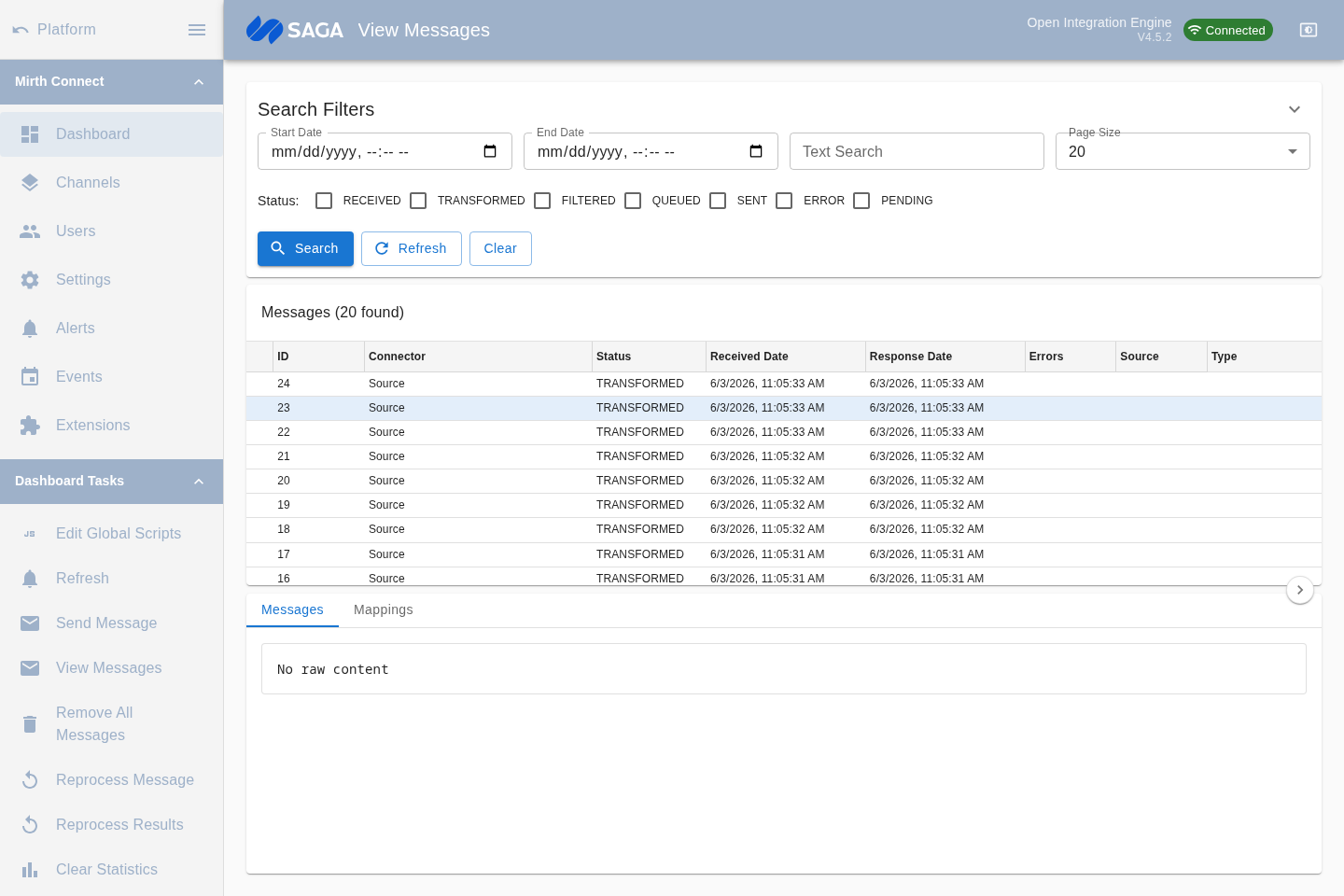
Searching messages
Section titled “Searching messages”The search panel at the top lets you filter by:
- Date range — start and end timestamps
- Status — one or more of: Received, Transformed, Filtered, Queued, Sent, Error, Pending
- Text search — searches raw message content
- Connector — filter to a specific source or destination connector
- Page size — number of results per page (10, 20, 50, or 100)
Click the search button to run the query. Use the pagination controls at the bottom of the list to move between pages.
Message list
Section titled “Message list”Each row in the list represents one message. Expand a row to see all connector messages — one entry for the source connector and one for each destination. The columns show:
| Column | Description |
|---|---|
| ID | Numeric message ID |
| Connector | Source or destination connector name |
| Status | Processing outcome for this connector |
| Received Date | When the message arrived at this connector |
| Response Date | When a response was received (destination connectors) |
| Errors | Error count for this connector message |
Inspecting message content
Section titled “Inspecting message content”Select a connector message row to load its details in the bottom panel. The panel shows tabs for:
- Raw — the message exactly as received or sent
- Processed Raw — after inbound preprocessing
- Transformed — after source or destination transformer
- Encoded — the encoded form sent to the destination
- Response — the response received from the destination
- Connector Map / Channel Map / Response Map — variable maps populated during processing
The mapping tab shows all variable scopes (source map, connector map, channel map, response map) with their variable names and values.
Reprocessing messages
Section titled “Reprocessing messages”With a channel selected on the Dashboard, choose Reprocess Message (or Reprocess Results) from the Dashboard Tasks list in the left sidebar. Reprocessing re-runs the message through the channel from its raw form, as if it had just arrived. This is useful for correcting errors after a configuration fix.
Removing messages
Section titled “Removing messages”With a channel selected on the Dashboard, choose Remove All Messages from the Dashboard Tasks list in the left sidebar to clear that channel’s message store. Removing messages is permanent. This task also requires write access and stays disabled until a channel is selected.