
Users
The Users page lets you view and manage the accounts that have direct access to this Mirth Connect server. These are server-local accounts, separate from your MDDS-LLM platform identity.
User list
Section titled “User list”The user table shows all accounts on the server with the following columns:
| Column | Description |
|---|---|
| Username | The login name |
| First Name | Given name |
| Last Name | Family name |
| Contact email address | |
| Organization | Organization field set on the account |
| Country | Country field |
| Role | The user’s role or industry designation |
Column widths are resizable by dragging the column dividers.
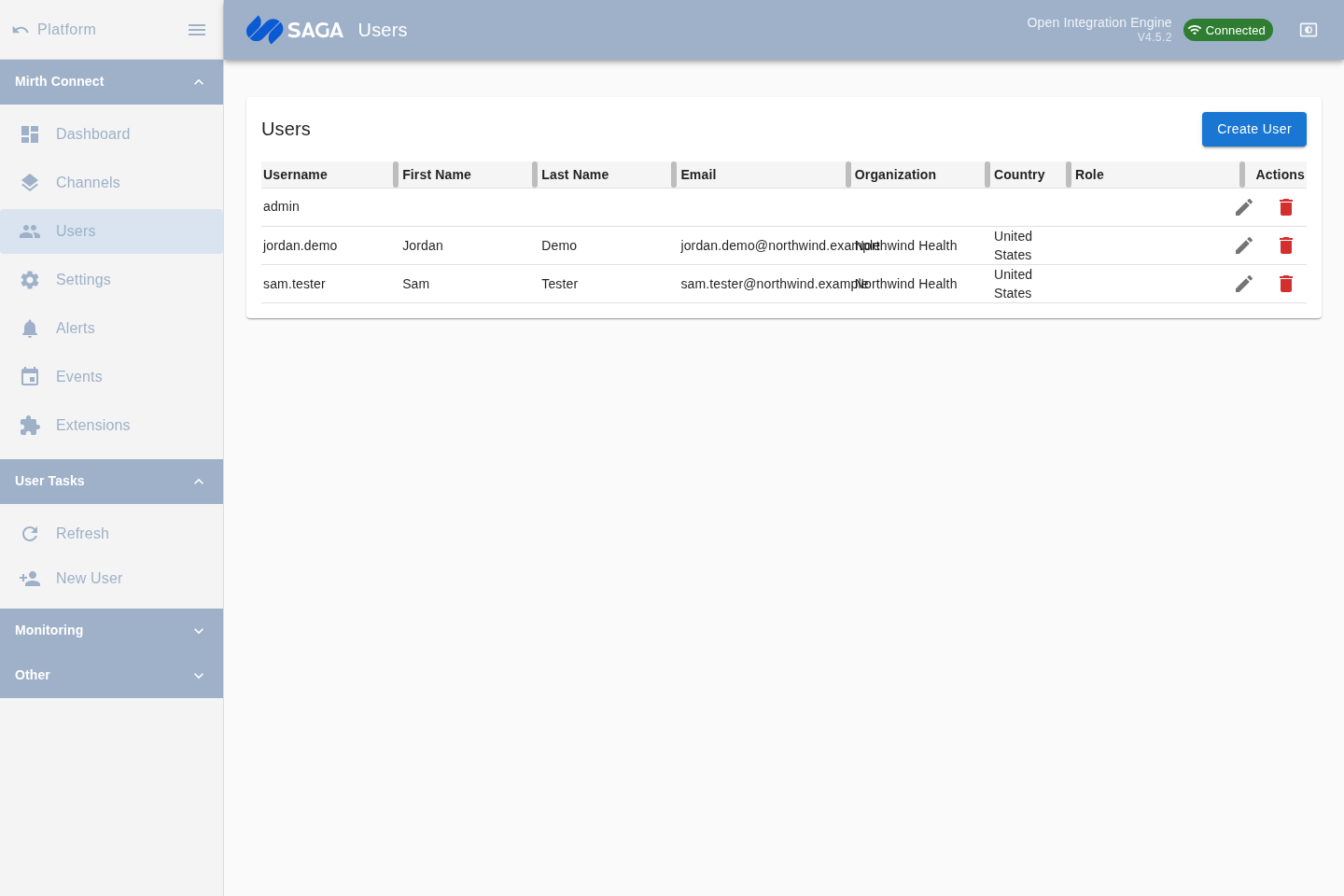
Adding a user
Section titled “Adding a user”Click the Create User button at the top of the Users page (or use the New User sidebar action) to open the user creation dialog. Fill in:
- Username (required)
- First Name, Last Name, Email, Organization, Country (all required)
- Password and Confirm Password (required for new users; on edit, leave blank to keep the current password)
- Phone number, state/territory, role, industry, description (optional)
Email must be a valid address format, and the password and confirm-password values must match.
Save to create the account. The user can immediately sign in to the server with those credentials.
Editing a user
Section titled “Editing a user”Select a user row and click the Edit button (pencil icon) or double-click the row. The same dialog opens pre-filled with the existing values. Update any fields and save.
Deleting a user
Section titled “Deleting a user”Select a user row and click the Delete button (trash icon). A confirmation dialog asks you to confirm before the account is removed.
Relationship to MDDS-LLM accounts
Section titled “Relationship to MDDS-LLM accounts”Server-local users here are distinct from your MDDS-LLM platform identity used for the Contact System. A person can have both — a platform account for managing peer connections and a server-local account for direct Mirth Connect administration.